How to Deploy AI Agents
1. VPS Setup
Hetzner Cloud (same process for any provider)
Start here first
Before touching OpenClaw, you need a server. This section walks through provisioning a VPS on Hetzner Cloud (one of the best price-to-performance options in Europe) from account login to your first SSH session.
Why a VPS instead of running locally?
Running AI agents on your laptop works for quick experiments, but falls apart in production. Your laptop sleeps, loses Wi-Fi, and shares resources with everything else you're doing. A VPS gives you a dedicated machine that's always on, always reachable, and isolated from your daily workflow. It's also the only sane way to expose messaging integrations (Telegram, WhatsApp) that need a persistent connection.
More importantly, a VPS behind Tailscale (which we'll set up in the next section) means your agent infrastructure is invisible on the public internet, no open ports for bots to scan, no brute-force attempts filling your logs.
Why Hetzner?
Hetzner's CX23 plan gives you 2 vCPUs, 4 GB RAM, 40 GB NVMe, and 20 TB of traffic for €5.99/month (about $7) including the public IPv4, at the prices Hetzner has charged since 15 June 2026. That's roughly 3-5x cheaper than equivalent specs on AWS, GCP, or DigitalOcean. Billing is hourly with a monthly cap, so you can spin up a server, test for a few hours, and destroy it for pennies. Datacenters are in Germany and Finland (Hetzner's US and Singapore locations don't sell the CX line), which keeps latency low for European users and respects EU data residency requirements by default.
For OpenClaw with cloud-hosted models (Anthropic, OpenAI), the CX23 is more than sufficient. If you plan to run local models through Ollama, you'll want to step up to a CX33 (4 vCPUs, 8 GB RAM) or higher, more on that in the OpenClaw install section.
As of September 2026 you may not be able to buy one. Since 26 June 2026 Hetzner has restricted new cloud servers for new customers and a random share of existing ones, citing high demand and limited hardware components, and its pricing page lists every Cost-Optimized plan (CX and CAX) as "not available". If the CX23 is greyed out for you, the Regular Performance CPX22 (2 vCPUs, 4 GB RAM, 80 GB NVMe) costs €19.99/month, or you can follow the same process on another provider with an Ubuntu 24.04 image. Check status.hetzner.com to see whether the restriction is still in place.
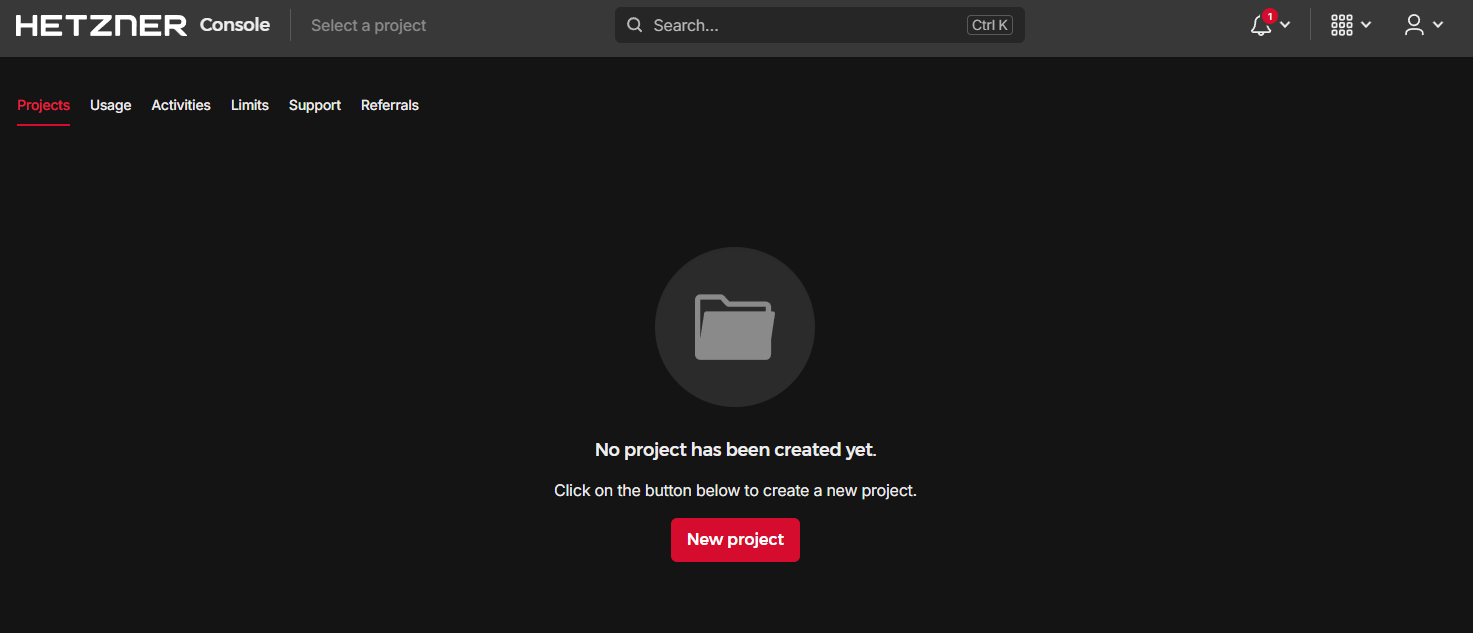
Step 1: Log in to Hetzner Cloud
Head to console.hetzner.com (the old console.hetzner.cloud address redirects there) and sign in. If you don't have an account, registration takes about two minutes. Hetzner may ask for ID verification for new accounts, this is normal and usually completes within a few hours.
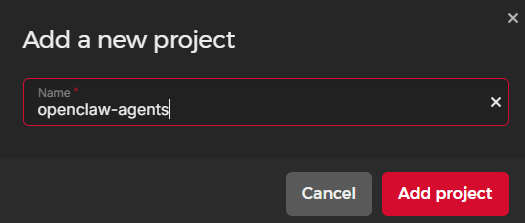
Step 2: Create a new project
Projects in Hetzner are organizational containers, think of them like folders. Create one called something descriptive (e.g., "ai-agents" or "openclaw-prod"). This keeps your agent infrastructure separate from any other servers you might spin up later.
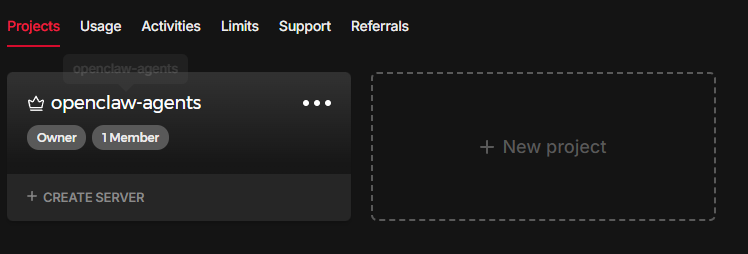
Here's your project dashboard where you'll manage all resources:

Step 3: Create a new server
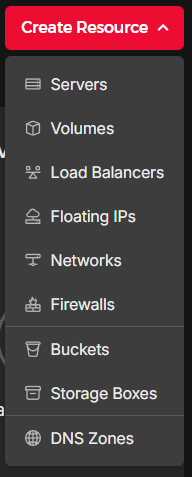
Click Create New Resource → Server. This is where you configure the machine specs. Here's what to select:
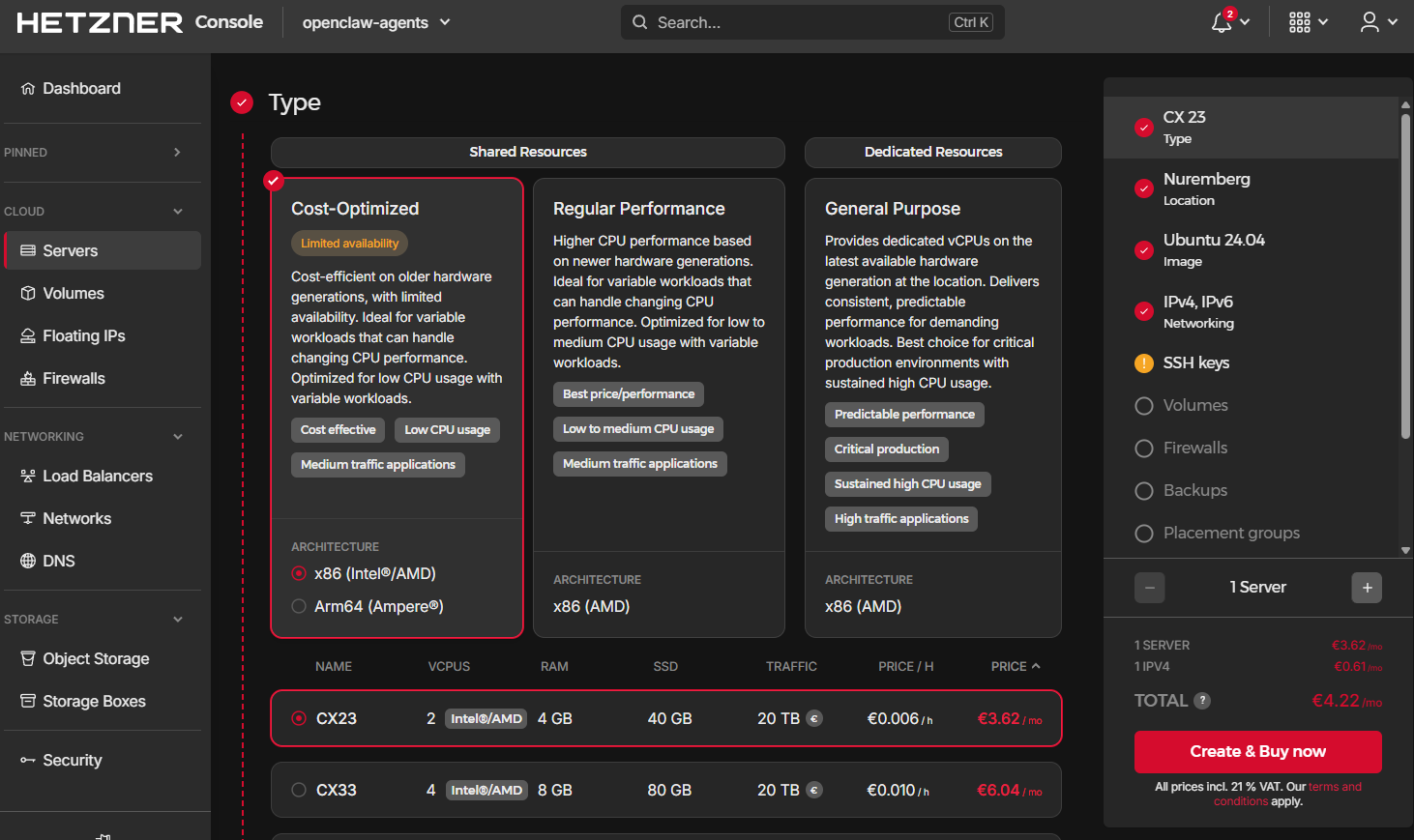
Step 4: Choose server type
Select Shared vCPU under the server type. This is the cost-optimized tier where CPU cores are shared across tenants, perfectly fine for an agent gateway that spends most of its time waiting on API responses rather than crunching data locally.
Pick CX23 as the plan (2 vCPUs, 4 GB RAM, 40 GB NVMe). For reference, here's how the cost-optimized line scales if you need more later (June 2026 prices, IPv4 included):
- CX23: 2 vCPUs, 4 GB RAM, 40 GB NVMe for €5.99/month
- CX33: 4 vCPUs, 8 GB RAM, 80 GB NVMe for €8.99/month
- CX43: 8 vCPUs, 16 GB RAM, 160 GB NVMe for €16.49/month
- CX53: 16 vCPUs, 32 GB RAM, 320 GB NVMe for €29.99/month
You can resize between these tiers later without losing data, Hetzner handles the migration. Start small, scale when you need to.
Step 5: Select the OS image
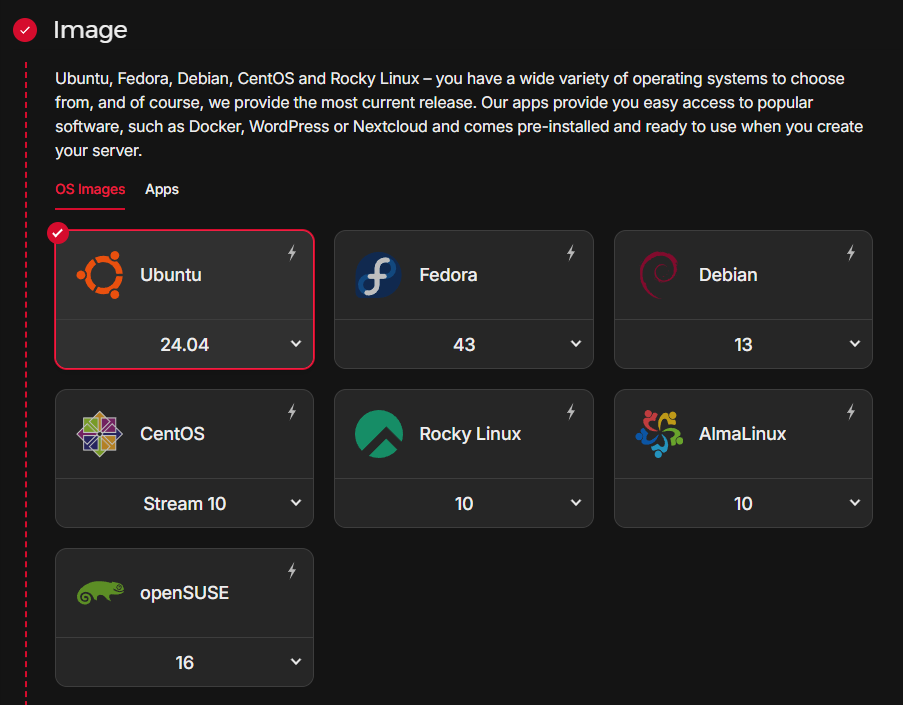
Choose Ubuntu 24.04 LTS. OpenClaw's docs name Ubuntu LTS as the best-tested Linux install path, and 24.04 gets standard security updates through May 2029. Ubuntu 26.04 LTS (released April 2026, supported through May 2031) is also in Hetzner's image list with a newer kernel, but the screenshots in this runbook were taken on 24.04.
Some operators prefer Debian for its conservative update policy and lighter footprint. Both work, Ubuntu just has broader community support for troubleshooting, and it's what most OpenClaw guides assume.
Step 6: Configure networking
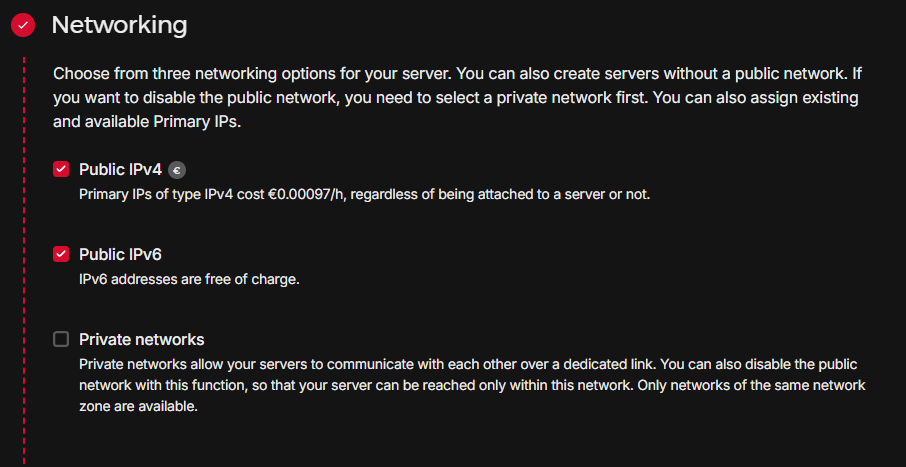
Enable both IPv4 and IPv6. The IPv4 address is what you'll use for initial SSH access (before Tailscale takes over). IPv6 is free and future-proofs your setup, some services and APIs are starting to prefer it.
Don't worry about the public IPv4 being exposed right now. In the next section, we'll lock it down so only Tailscale traffic gets through.
Step 7: Add your SSH key
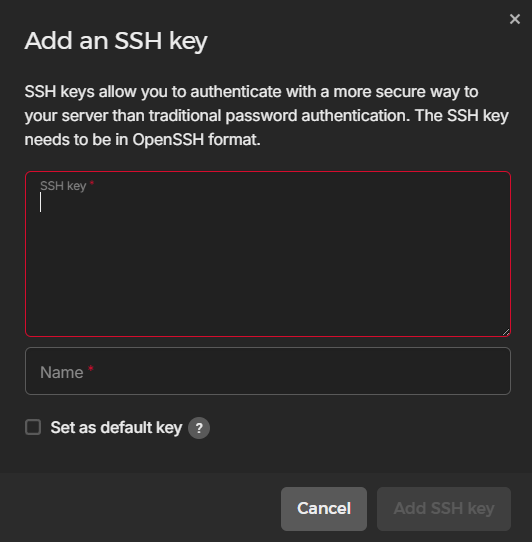
Paste your public SSH key in the dialog. If you don't have one yet, generate a key pair on your local machine:
# Generate an Ed25519 key (modern, fast, secure)
ssh-keygen -t ed25519 -C "your@email.com"

# Copy the public key to your clipboard
cat ~/.ssh/id_ed25519.pub
Ed25519 keys are shorter and faster than RSA, and they're the recommended default in 2026. Paste the contents of the .pub file into the Hetzner SSH key dialog. This key is only needed for the initial connection, once Tailscale SSH is configured, it takes over authentication entirely.
Step 8: Skip volumes and firewalls
Leave Volumes and Firewalls empty for now. The 40 GB NVMe included with CX23 is plenty for OpenClaw (which needs around 1-2 GB for the installation plus workspace). We'll handle firewall rules at the OS level with ufw and Tailscale, which gives us more granular control than Hetzner's cloud firewall.
Step 9: Name it and create
Give your server a meaningful name (e.g., openclaw-prod or agent-gateway-01) and click Create & Buy. Provisioning takes 10-30 seconds.

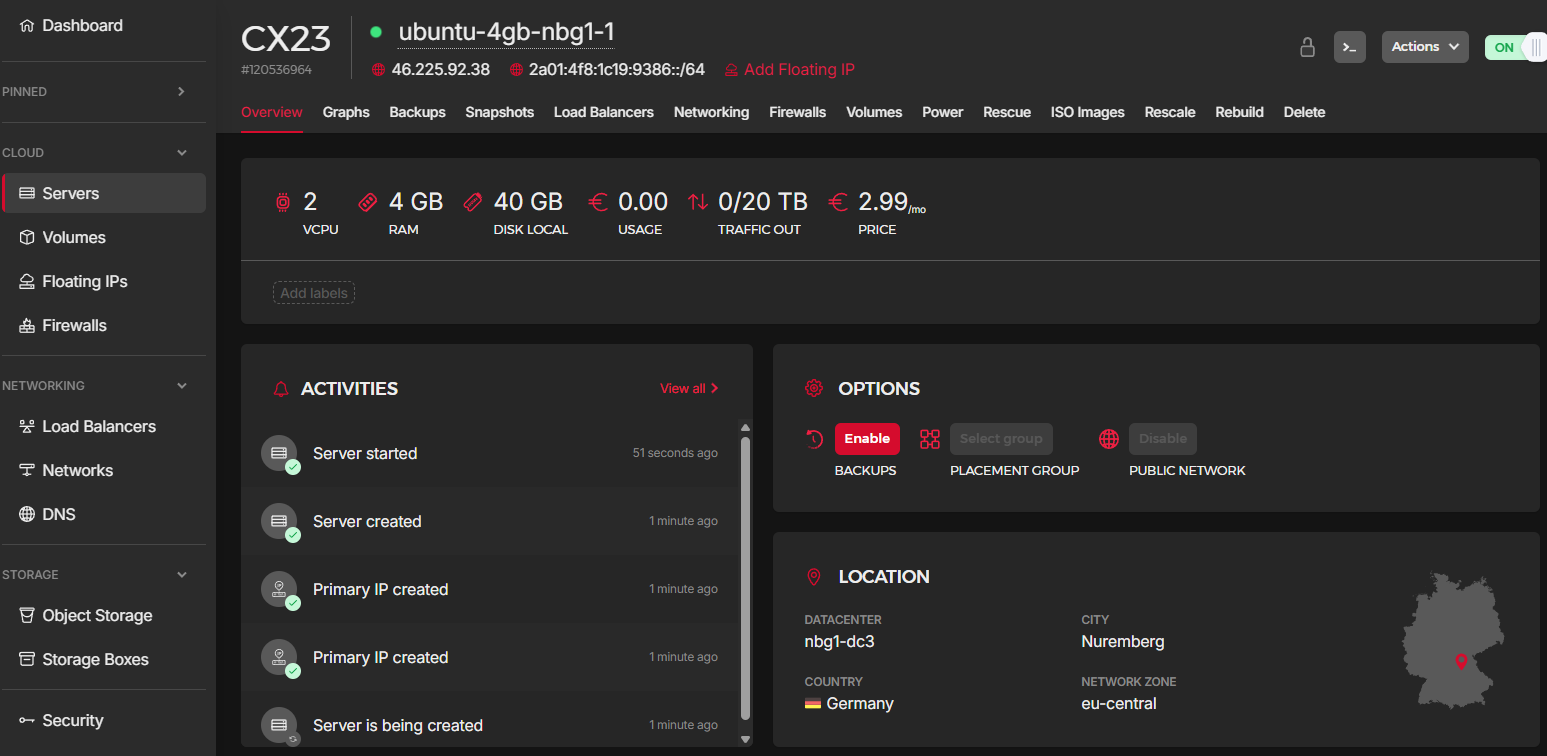
Step 10: Copy the public IP
Once the server status turns green, copy the public IPv4 address. You'll need it for the initial SSH connection. After Tailscale is configured, you'll use the Tailscale IP (a 100.x.x.x address) instead.
Step 11: SSH for the first time
Open a terminal on your local machine and connect:
ssh root@<PUBLIC_IP>
# Type "yes" when prompted to accept the host fingerprint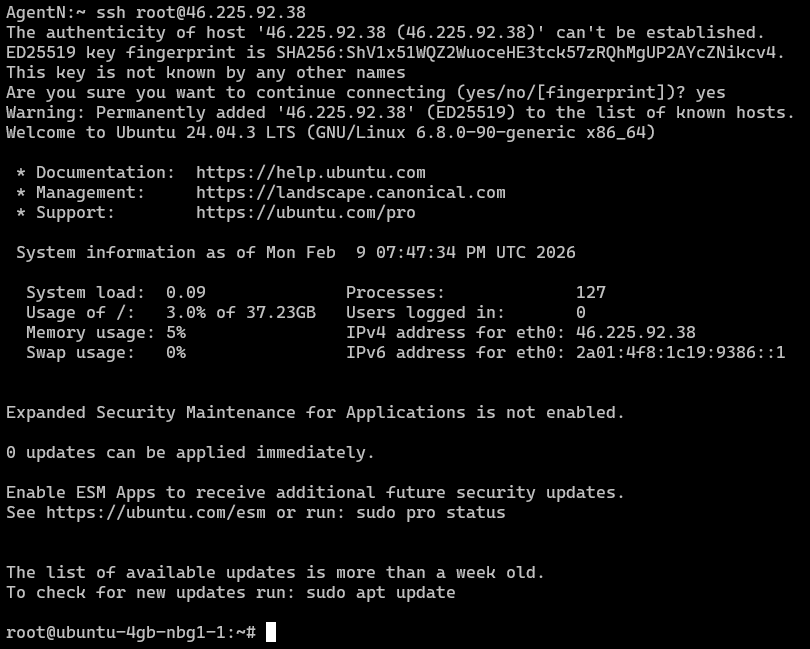
If the connection succeeds, you're in. This is the last time you'll SSH over the public internet, by the end of the next section, public SSH access will be completely disabled.
If it fails, double-check that the SSH key you pasted matches the private key on your local machine (~/.ssh/id_ed25519), and that your local IP isn't being blocked by any corporate firewall or VPN.
What we've accomplished
You now have a dedicated Ubuntu server running in Hetzner's datacenter for €5.99/month. It has a public IP, root SSH access, and 40 GB of fast NVMe storage — everything OpenClaw needs. But right now, it's completely exposed on the public internet. Every port is reachable, SSH is listening on port 22, and automated bots will start probing it within hours. Let's fix that.
2. Initial Security Hardening
Lock down before expanding capabilities
Lock down before expanding capabilities
A freshly provisioned VPS is an open target. Bots scan the entire IPv4 address space in under 45 minutes, your server will get its first brute-force SSH attempt within hours of going live. In this section, we'll close every door that doesn't need to be open: install Tailscale to create a private encrypted network, restrict SSH to that network only, disable root login, and create a non-root user for daily operations.
What we're building
By the end of this section, your VPS will have a completely different security posture:
- Before: SSH on port 22 accepting connections from any IP on earth. Root login enabled. Password authentication possible.
- After: SSH only listens on the Tailscale network interface. Root login disabled. Password auth disabled. Only authorized devices on your Tailscale tailnet can reach the server at all.
This is the "zero trust" approach. The server doesn't trust any network. Access is granted per-device, per-user, through an encrypted mesh, not by IP address or network location.
Step 1: Update the system
First things first: pull the latest package lists and upgrade everything. On a fresh Ubuntu install, this patches known CVEs in base packages and ensures your package manager is working correctly.
sudo apt update -y && sudo apt upgrade -y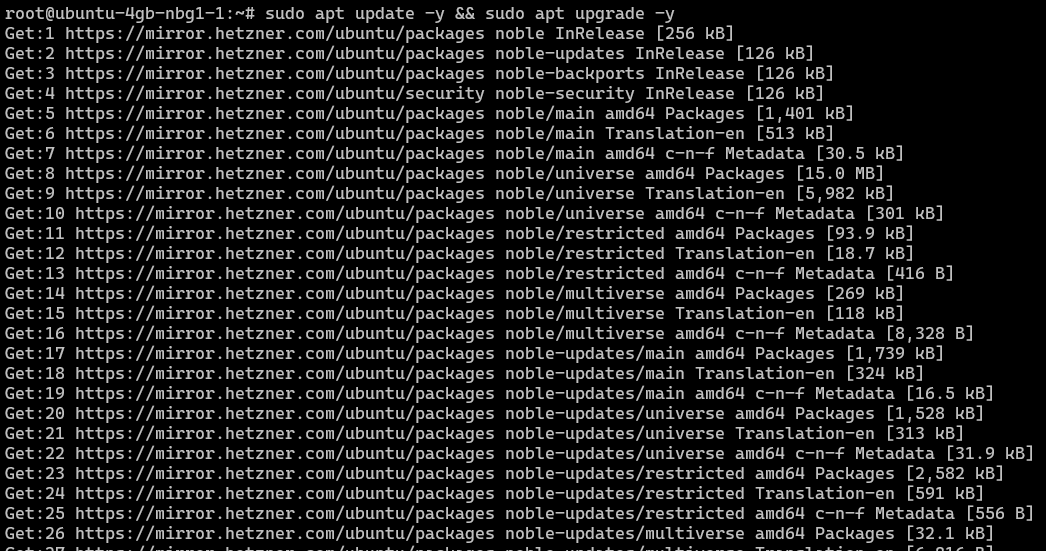
This may take a minute or two depending on how many packages need updating. If prompted about configuration file changes, accept the default (keep the currently installed version).
Step 2: Install Tailscale
What is Tailscale and why do we need it?
Tailscale creates a private mesh network (called a "tailnet") between your devices using WireGuard encryption under the hood. Every device on the tailnet gets a stable 100.x.x.x IP address that works regardless of physical network, NAT, or firewall. Traffic between devices is end-to-end encrypted and peer-to-peer, it doesn't route through Tailscale's servers (except for initial coordination, or through an encrypted relay as a last resort when a direct path isn't possible).
Think of it as a VPN, but without the VPN server bottleneck. Your laptop talks directly to your VPS through an encrypted tunnel, and that tunnel works from your home Wi-Fi, a coffee shop, a hotel, or a corporate network, no port forwarding or firewall exceptions required.
For our setup, Tailscale replaces traditional SSH key management entirely. With --ssh enabled, Tailscale handles authentication and authorization for SSH connections. You don't need to manage authorized_keys files, rotate SSH keys, or worry about compromised keys, access is controlled through Tailscale's admin console.
Install the Tailscale client on your VPS:
curl -fsSL https://tailscale.com/install.sh | sh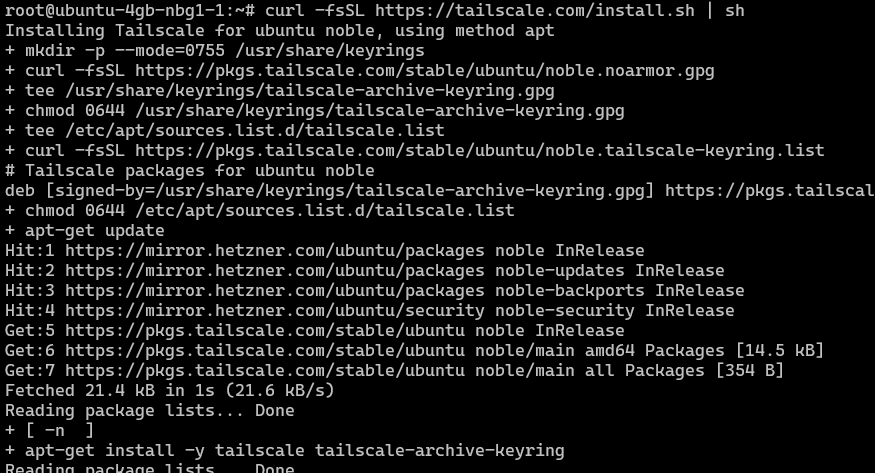
Step 3: Connect the VPS to your tailnet
Start Tailscale with SSH mode enabled. The --ssh flag tells Tailscale to accept SSH connections directly, using your Tailscale identity instead of SSH keys:
sudo tailscale up --ssh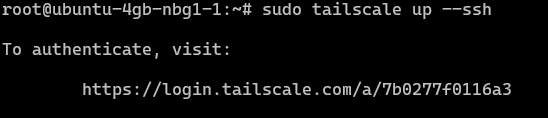
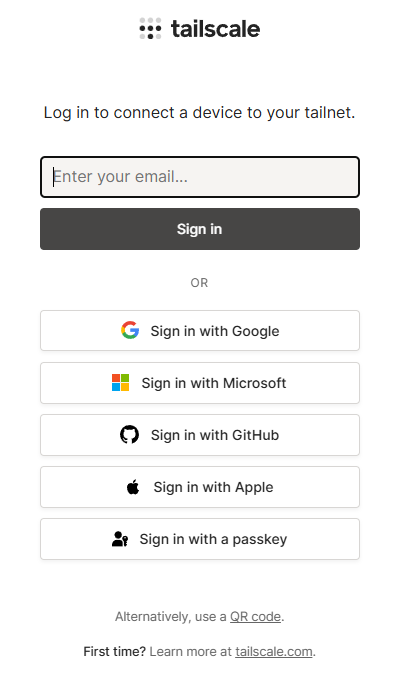
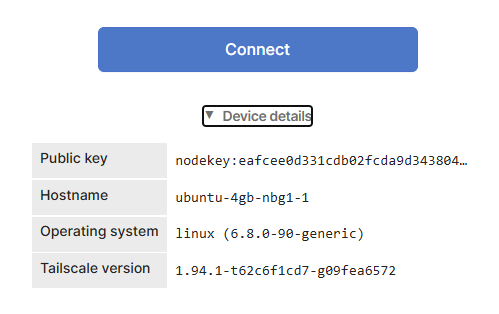
Tailscale will print a URL. Open it in your browser to authenticate. This links the VPS to your Tailscale account, which means only devices you've authorized on the same tailnet can connect to it.
Step 4: Install Tailscale on your local machine
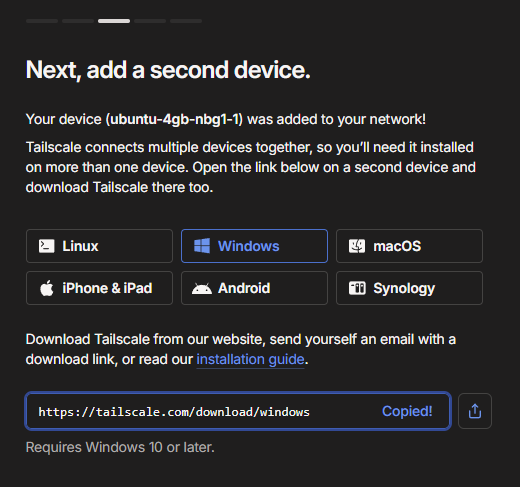
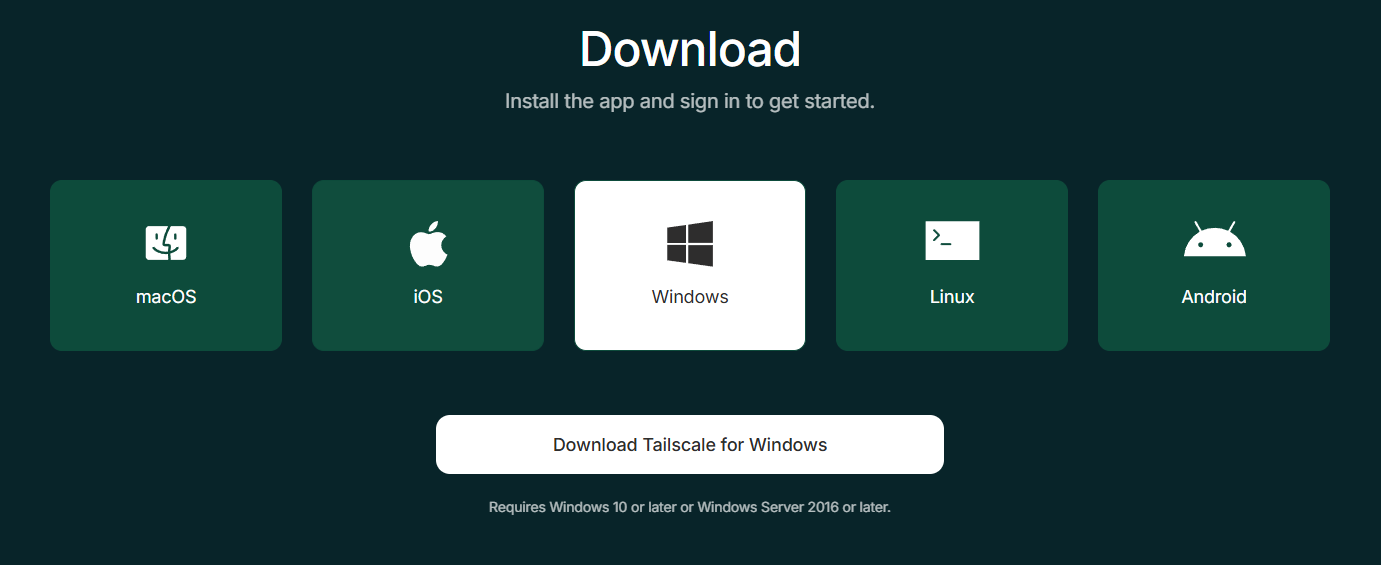
For the private network to work, both ends need Tailscale. Download and install Tailscale on the machine you'll manage the VPS from, e.g. your laptop, desktop, or workstation. Tailscale supports macOS, Windows, Linux, iOS, and Android.
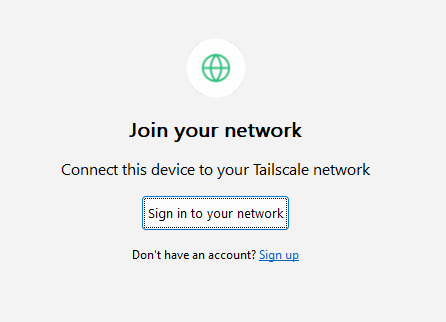
Sign in to the same Tailscale account you used for the VPS:
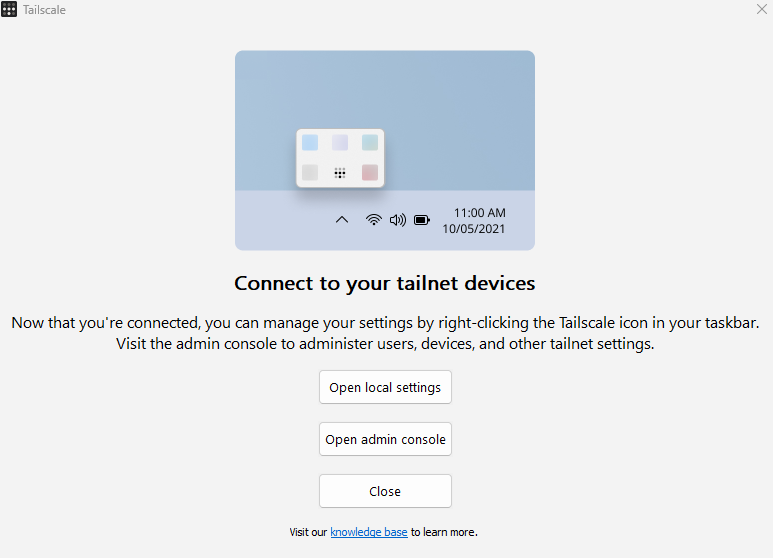
Step 5: Verify the mesh connection
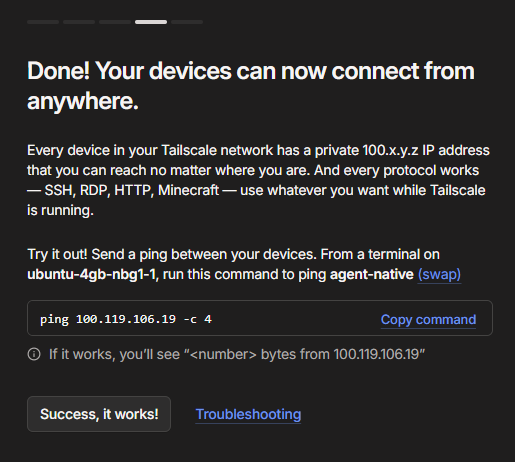
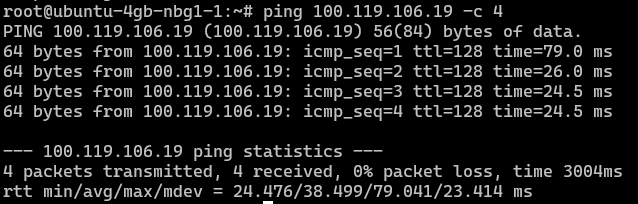
Once both devices are connected, you can ping one from the other using their Tailscale IPs. This confirms the encrypted tunnel is working.
Ping your local device from the VPS:
Now ping the VPS from your local machine:
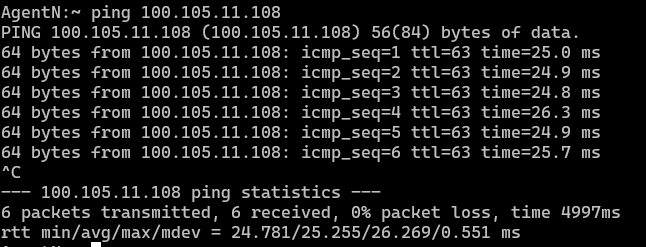
You should see transmitted packets with low latency. If pings fail, check that both devices show as "Connected" in the Tailscale admin console:
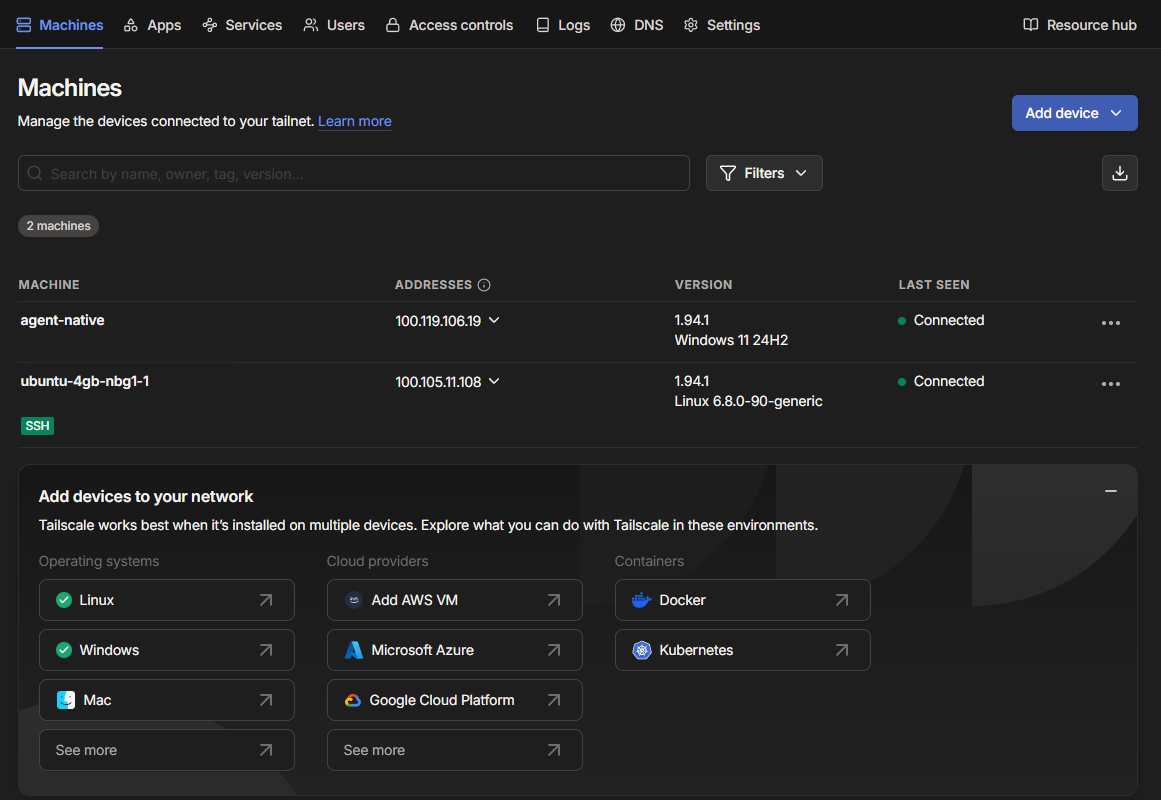
The admin console at login.tailscale.com/admin/machines shows all devices on your tailnet, their Tailscale IPs, connection status, and last-seen timestamps. Bookmark this, you'll use it whenever you add a new device or debug connectivity issues.
While you're on that page, open the menu at the far right of your VPS's row and select Disable Key Expiry. Tailscale node keys expire after 180 days by default, and once public SSH is closed later in this section, an expired key on the VPS leaves Hetzner's web console as your only way in.
Step 6: Harden SSH configuration
Now the critical part: we tell the SSH daemon to only listen on the Tailscale network interface. This means SSH becomes completely invisible on the public internet, even a port scan of your public IP won't find it.
Open the SSH configuration file in your VPS terminal:
nano /etc/ssh/sshd_config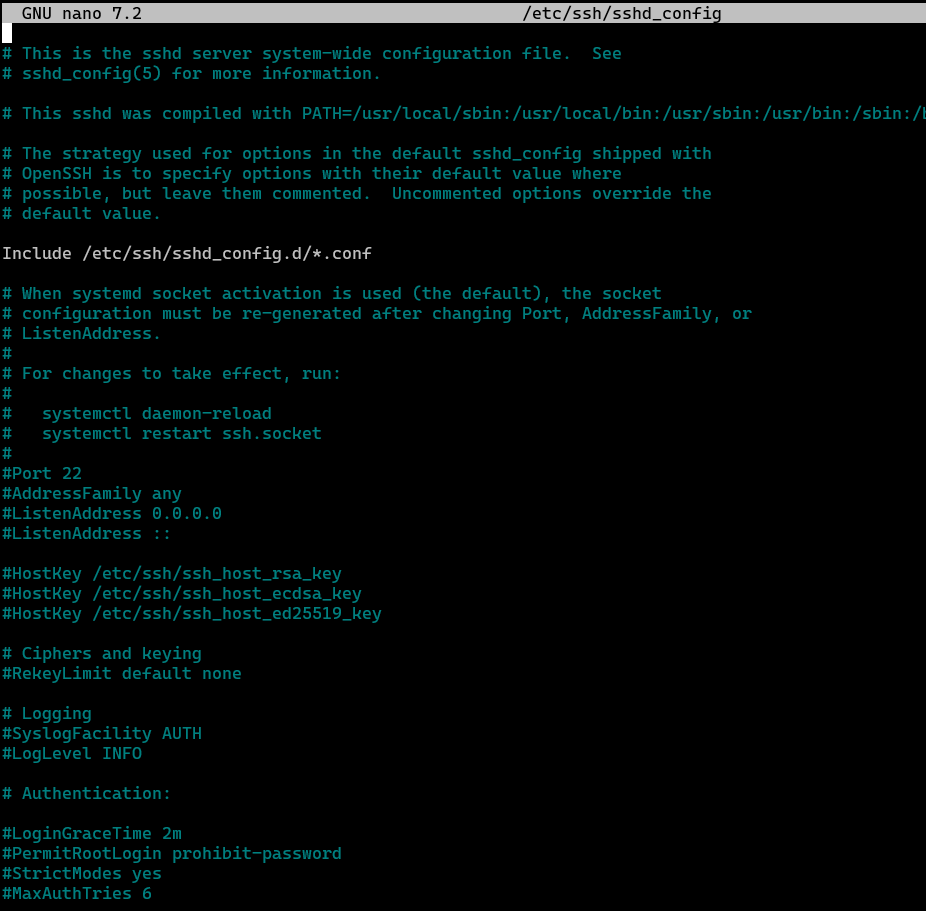
Find the ListenAddress line (it's usually commented out). Uncomment it and set it to your VPS's Tailscale IP. You can find this IP in the Tailscale admin console, it'll be something like 100.105.11.108.
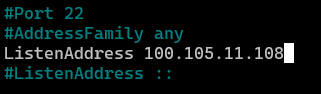
Then set these two additional options to disable password authentication and root login:
# Only listen on the Tailscale interface — not the public IP
ListenAddress 100.x.x.x    # Replace with YOUR VPS Tailscale IP

# Disable password authentication — keys or Tailscale SSH only
PasswordAuthentication no

# Disable root login — use your non-root user (created next)
PermitRootLogin no
Why each setting matters
- ListenAddress: Binds SSH to the Tailscale interface only. Anyone scanning your public IP will see port 22 as closed. This is the single most effective hardening step, it removes SSH from the public attack surface entirely.
- PasswordAuthentication no: Even if an attacker somehow reaches SSH, they can't brute-force passwords. Only key-based or Tailscale SSH authentication works.
- PermitRootLogin no: Forces the use of a regular user account, so even a compromised session doesn't have root privileges by default. You'll use
sudowhen you need elevated access.
Save with Ctrl + S and exit with Ctrl + X.
Step 7: Create a non-root user
Running everything as root is a security anti-pattern. If an agent or tool gets compromised, root access means the attacker owns the entire machine. A dedicated non-root user limits the blast radius and gives you an audit trail of privileged actions through sudo.
# Create a new user — pick any name (we use "clawuser")
adduser clawuser

# Grant sudo privileges
usermod -aG sudo clawuser

# Switch to the new user to test
su - clawuser

# Verify sudo works
sudo whoami
# Should output: root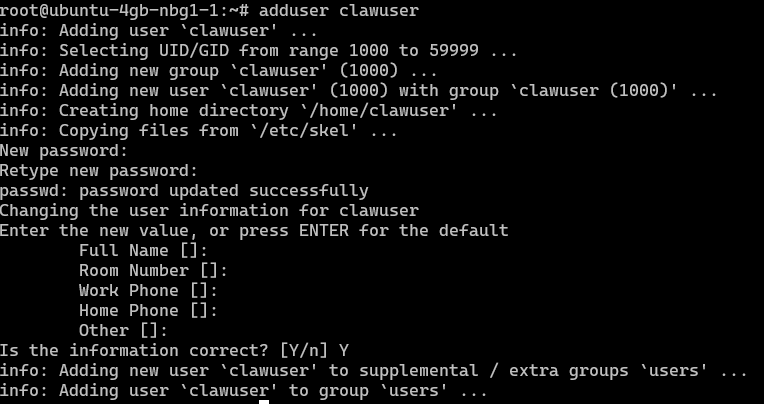


Enter a password and accept the default values for the user info prompts. The password is a fallback, primary authentication will be through Tailscale SSH.
Step 8: Restart SSH and verify the new access flow
This is the moment of truth. We'll restart the SSH daemon with the new configuration, then verify that:
- Root SSH over the public IP fails (expected, we disabled both)
- SSH as
clawuserover the Tailscale IP succeeds
# Exit back to root, check and apply the SSH config, then disconnect
logout          # back to root
sshd -T | grep -Ei 'listenaddress|passwordauthentication|permitrootlogin'
systemctl daemon-reload
systemctl restart ssh.socket
logout          # disconnect from VPS
Ubuntu 24.04 starts sshd through systemd socket activation, so systemd's ssh.socket holds port 22 and hands connections to sshd. The socket picks up the new ListenAddress only after daemon-reload and a socket restart; a plain systemctl restart ssh leaves port 22 open on the public IP. The sshd -T line prints the values sshd will use. You should see permitrootlogin no, passwordauthentication no and your Tailscale IP. Ubuntu reads the files in /etc/ssh/sshd_config.d/ before the main config and keeps the first value it finds, so if a line shows something else, fix it in the drop-in file that sets it.
Now from your local machine (with Tailscale running), try connecting as root over the public IP, this should fail with Connection refused:
# This should FAIL: SSH no longer listens on the public IP
ssh root@<PUBLIC_IP>
If you get Permission denied (publickey) instead, sshd is still listening on the public IP. Connect over Tailscale and rerun systemctl daemon-reload and systemctl restart ssh.socket with sudo.
Then try connecting as your new user, this should succeed:
# This should SUCCEED — non-root user over Tailscale
ssh clawuser@100.105.11.108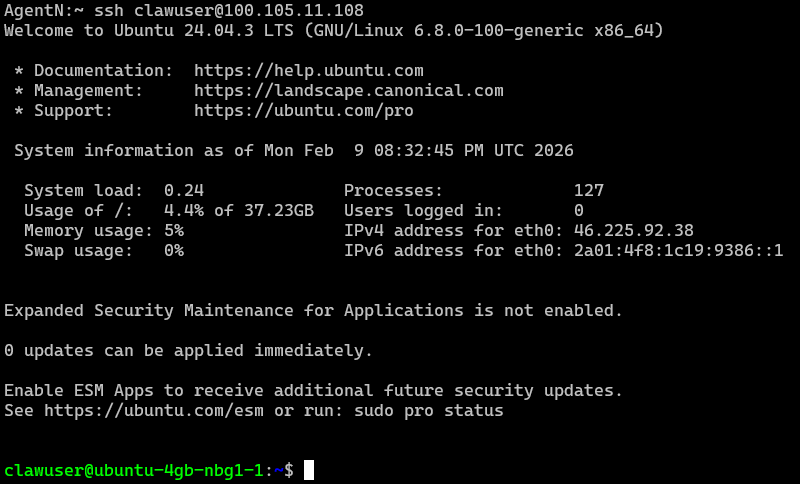
This connection goes to Tailscale SSH, not sshd, because Tailscale claims port 22 on the VPS's Tailscale IP. PermitRootLogin doesn't apply to it. The default tailnet policy runs Tailscale SSH in check mode, so the first connection may print a link to re-authenticate in your browser (valid for 12 hours). The same policy lets you in as root as well. To block root over Tailscale too, open Access controls in the admin console and remove "root" from the users list of the ssh rule.
If you need to access the server from another device (phone, a second laptop, a CI runner), install Tailscale on that device and connect it to the same tailnet. No SSH key copying needed, Tailscale handles the authentication.
You may still be able to ping the public IP at this stage. That's fine, ping doesn't give an attacker much. We'll close this completely with ufw firewall rules after OpenClaw is installed, in the Firewall & Gateway section.
Security checkpoint
Your VPS is now significantly hardened. SSH only works over Tailscale, root login is disabled, and password authentication is off. The public IP still responds to pings, but there's no open port for an attacker to exploit. In the next section, we'll install OpenClaw on this locked-down server.
Sections 3 to 10: Install, harden, connect and automate
Unlock the install and onboarding, the hardening audit pack, the Telegram channel, the firewall and private gateway, skills, the Reddit playbook, Gmail with cron jobs, and Google Drive sync.
Join The Agent Foundry to unlock sections 3 to 10 (install and onboarding, the hardening audit pack, Telegram, the private gateway, skills, Gmail and cron, Drive sync), the implementation artifacts, and repository access.
Enter your email to continue. We'll send a one-click sign-in link and bring you back here.